

After years of carrying adapters, dongles, and cables with connectors that seemed specifically designed to be inserted incorrectly on the first attempt, we finally had one small, reversible connector that could handle almost everything. Video, audio, USB data, network connectivity, and power could all travel through a single cable. For those of us supporting classroom technology, that sounded like progress.
Then people started using it. I have been in classrooms where a faculty member connected a laptop to the USB-C cable at the lectern and expected the display to turn on. The cable fits. The laptop recognized that something had been connected. It may have even started charging. But no image appeared on the classroom display. The natural assumption was that something in the room had failed. That is a reasonable assumption, especially when the same classroom connection worked for another user earlier that day.
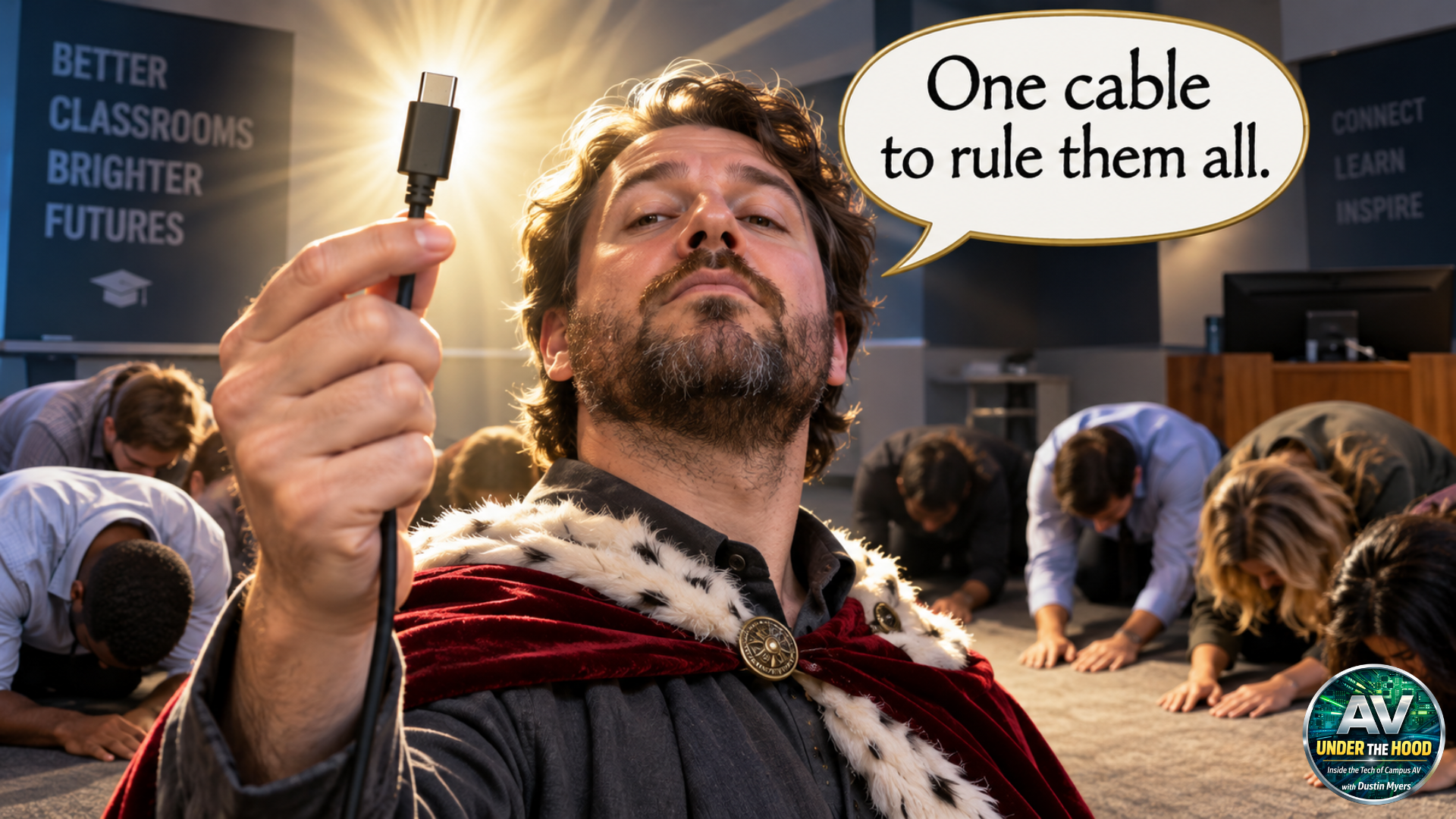
But sometimes the classroom system is operating exactly as designed. The problem is that USB-C does not necessarily mean what end users think it means. USB-C describes the physical connector. It defines the size and shape of the connector, but it does not guarantee every capability that can use that connection. Two USB-C ports can look identical while supporting very different functions.
One may provide basic USB data. Another may support video output. Another may support charging. Some support high-speed data, video, and power through the same connection. Others support only part of that list. The connector tells us that the cable fits. It does not tell us what will happen after we plug it in.
Same connector, different capabilities
This was a topic during the HETMA Virtual Conference a couple of years ago, and for good reason. Higher ed has been moving toward USB-C as a classroom connection, but making that change is not as simple as replacing an HDMI cable with one that has a smaller connector. HDMI creates its own challenges, but its primary purpose in most classrooms is relatively clear. We connect it to transport video and audio.
USB-C arrives with a much longer list of possible responsibilities. For a laptop to send video over USB-C, the port must support a video transport method. One common method is DisplayPort Alternate Mode, which allows DisplayPort video to travel through the USB-C connection. USB4 and Thunderbolt can also carry display information, but the important point for classroom support is that video capability is not guaranteed by the connector alone.
The source device must support video output through that specific port. The cable must support the required capabilities. Any adapter, dock, or extender in the signal path must also be compatible. If one part of that path does not support what we are trying to accomplish, the connector can fit perfectly while the display remains blank.
Even identifying the capabilities of a port can be difficult. Some manufacturers place symbols next to USB-C ports to indicate video, charging, Thunderbolt, or other features. Those symbols can be helpful if they are present and if the person connecting the device knows what they mean. In other cases, determining what a port supports requires looking up the exact model and hopefully finding the specifications. That is not a particularly useful troubleshooting step when an instructor is standing at a lectern and the class began three minutes ago.
The cables create another problem because USB-C cables are not all the same. A cable may be designed primarily for charging and support only limited data transfer. Another may support higher data rates, video, and greater power delivery. Some cables contain additional electronics that communicate their capabilities to the connected devices. From the outside, however, they may look identical.
This means the USB-C cable that charges a laptop from a wall adapter may not be appropriate for connecting that laptop to a classroom system. It has the correct connector on both ends, but it may not support the function we need. We have spent years teaching people that if a cable does not fit, they should not force it. USB-C has introduced the opposite problem. The cable fits so easily that we assume it must be the right cable.
Power adds still more uncertainty. A classroom USB-C connection may provide power to a laptop, but the amount of available power can vary. A smaller laptop may operate and charge successfully from the power provided by the room. A more demanding device may recognize the power connection but consume electricity faster than the system can supply it.
The charging icon may appear even while the battery percentage slowly decreases. That does not always mean the classroom system or the laptop is malfunctioning. The devices may have successfully negotiated the available power. The classroom system provides what it can, and the laptop is accepting it. The negotiated amount is simply not enough to meet the laptop’s full operating demand. For the end user, that distinction is not especially comforting when the battery reaches 10 percent halfway through a presentation.
USB-C docks can make the experience wonderfully simple when everything works. A single connection can provide video, Ethernet, charging, and access to classroom USB devices such as cameras, microphones, or interactive displays. But that dock also manages several services through a single connection. Available bandwidth may be shared among video and USB devices. The dock may depend on firmware, drivers, operating system support, or specific capabilities of the laptop. A docking solution that works perfectly with the institution’s standard computer may behave differently when a guest presenter arrives with another model.
That is one of the challenges of using USB-C in higher ed. Our classrooms do not serve only one device. We support institution-owned laptops, personally owned devices, guest computers, tablets, and equipment purchased at different points in the technology cycle. Even when our institution has a standard laptop, we cannot assume that every person entering the room has that model. Let’s face it, we cannot afford to replace every computer with the same model at once.
Testing beyond the picture
Testing also must go beyond confirming that a picture appears. If the classroom connection is intended to provide video, charging, network access, and USB connectivity, each of those functions needs to be tested. We need to know how much power the system provides, which video formats it supports, and what happens when other peripherals are connected.
Clear labeling and documentation can help, although they cannot eliminate every compatibility issue. If the classroom’s USB-C connection supports video and USB devices but provides limited charging power, we should know that before the room is placed into service. If HDMI remains available as a fallback, users and support staff should be able to identify it quickly.
None of this means USB-C is a bad classroom connection. It is one of the most versatile connections we have, and it can make a classroom much easier to use. One cable really can connect a laptop to the display, network, power, and other peripherals. The problem begins when we treat “can” as “will.”
For the faculty member entering the room, USB-C appears to be a simple connection. They should not need to understand alternate modes, power negotiation, cable capabilities, or shared bandwidth to show a presentation. The complexity lives under the hood, which means it becomes our responsibility to understand, test, document, and manage it. USB-C standardized the connector. It did not standardize every capability behind it. The cable may fit. That is not the same as a promise that everything will work.